
Summary
How to troubleshoot and resolve issues with your computer battery. Issues may include poor battery life, a status message saying the battery is "Not Charging", or your battery level decreasing even when the power adapter is plugged in.
If you are experiencing these issue, you are not necessarily experiencing a computer hardware issue. Please Restart your Computer before attempting the steps below.
If you still have questions after reading this article, please visit our Help Center where you can browse content, chat with a Service Desk Agent, or submit a ticket.
Sections in this Article
- About Battery Status
- Check Battery Health
- Using the Correct Charger
- Battery Health Management: "Battery Not Charging"
- NVRAM + SMC Reset
About Battery Status
The battery in your computer is a consumable item. Luckily there are a number of features built in to improve battery life and increase battery longevity.
The Battery Status is designed to give you a general idea of the health and performance of your battery. More information is available on MacBook Pro batteries from Apple here.
There could be several reasons your computer battery is not charging properly. Please check the steps below before requesting service.
Check Battery Health
macOS Catalina
You can confirm the status of your battery by holding OPTION while clicking the battery icon:

macOS Big Sur
You can confirm the health of your battery in System Preferences > Battery.
- Click Battery in the left column, then choose Battery Health

Your battery health will be displayed, along with an option to enable the battery longevity management feature.

Using the Correct Charger
Although the Apple power adapter/charger looks the same for every computer, it is different depending on the size of your MacBook Pro (13", 15" or 16").
To properly charge your MacBook battery, you should use the appropriate wattage adapter:
- 13-inch MacBook Pro models use 61W USB-C Power Adapter
- 15-inch MacBook Pro models use 87W USB-C Power Adapter
- 16-inch Intel MacBook Pro models use 96W USB-C Power Adapter
- 16-inch M1 MacBook Pro models use 140W USB-C Power Adapter
It is always worth trying different power outlets or surge protectors at home, as well as testing different power adapters or charge cables, if available, to isolate any charging issues.
You can find out more about charger types in this Apple article:
https://support.apple.com/en-us/HT201700
Using the Correct Cable
It might sound silly, but the USB-C charge cable can make a difference as well. As Apple's products have evolved, older generation cables aren't capable of charging computers with higher power requirements as efficiently as the newer ones. According to Apple:
- If the first three characters of the serial number are C4M or FL4, the cable is for use with an Apple USB-C Power Adapter up to 61W. (13" MacBook Pro)
- If the first three characters of the serial number are DLC, CTC, FTL, or G0J, the cable is for use with an Apple USB-C Power Adapter up to 100W. (15" or 16" MacBook Pro)

If you are unsure which computer you have, please check the following:
- From the Apple menu select "About This Mac"

Battery Health Management: "Battery Not Charging"
In the latest macOS update (Catalina 10.15.5 and later), Apple released a new feature called Battery Health Management to help extend your battery lifespan. You can read more about this new feature on Apple's website:
https://support.apple.com/en-us/HT211246
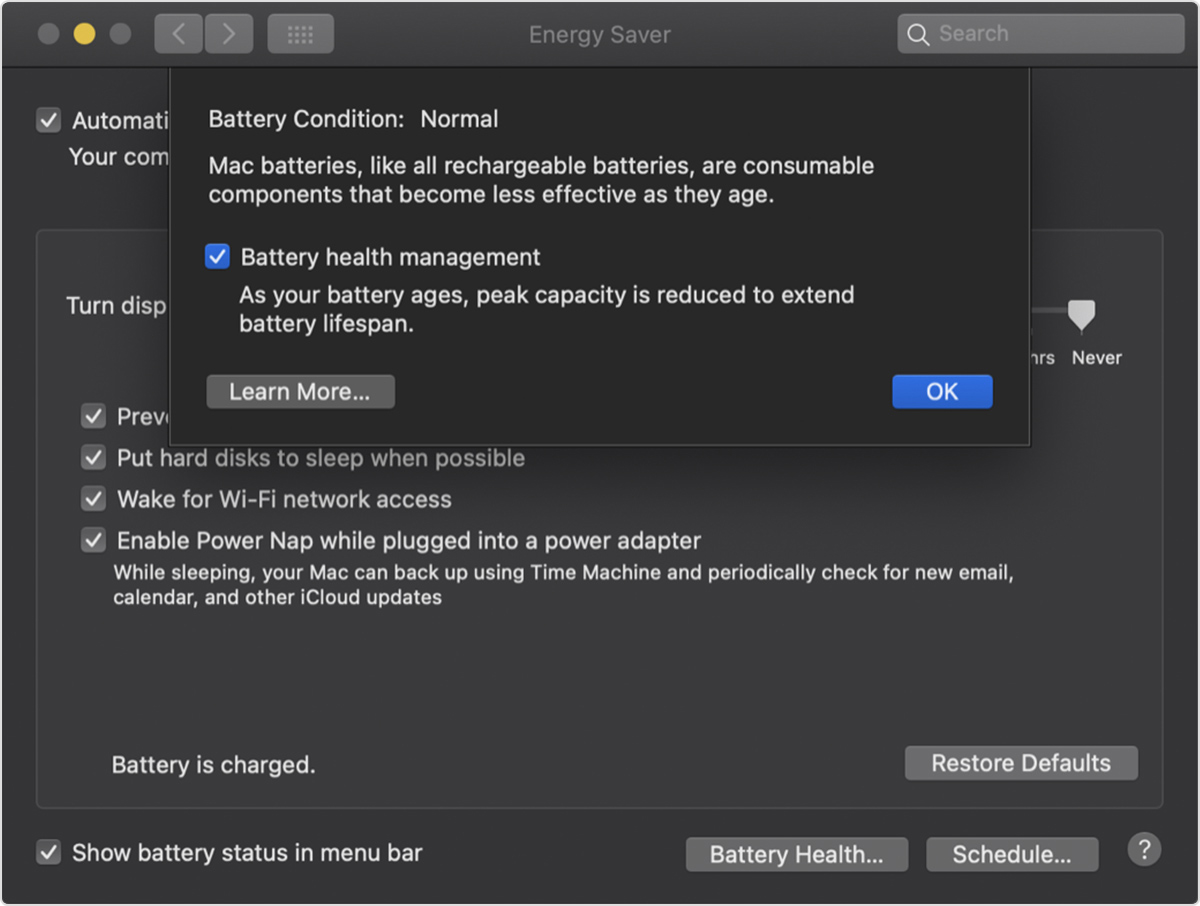
This setting is enabled by default, and you might occasionally see "Not Charging" in the battery status menu causing the battery charge to decrease. Depending on usage, the battery should start charging again on its own. If you notice that the battery is not charging and the computer is about to run out of charge, you can turn this setting off to see if the battery starts to charge again.
- From the Apple Menu , Choose System Preferences > Energy Saver.
- Click Battery Health
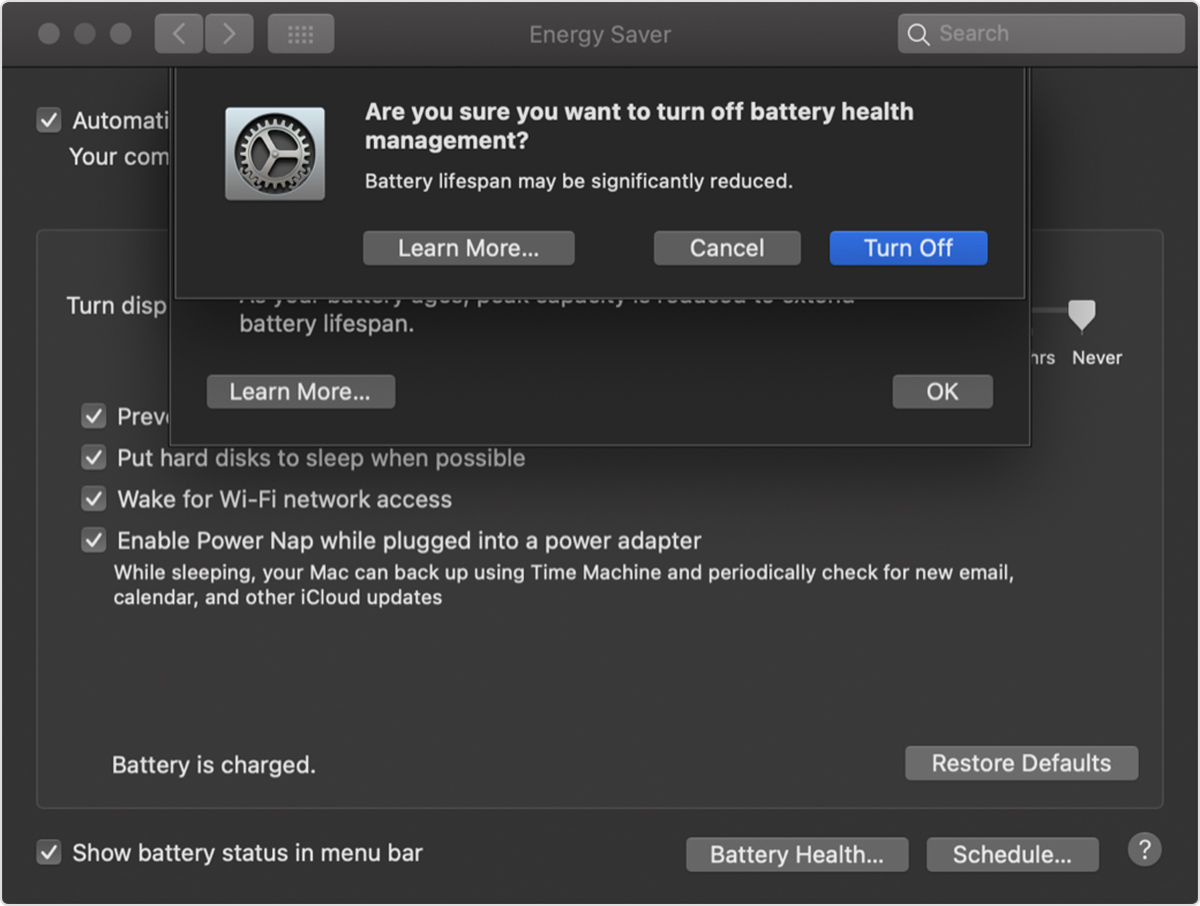
- Deselect Battery health management, then click OK
- When prompted, click Turn Off
NVRAM + SMC Reset
NVRAM Reset
If you are continuing to have issues, please reference this article on how to reset your computer's NVRAM.
SMC Reset
Power management issues can often be resolved with an SMC Reset. Please follow the instructions in this article from Apple to reset your SMC:
- Shut down your Mac.
- On your built-in keyboard, press and hold all of the following keys. Your Mac might turn on.
- Control
 on the left side of your keyboard
 - Option (Alt)
 on the left side of your keyboard
 - Shift
 on the right side of your keyboard
- Control
- Keep holding all three keys for 7 seconds, then press and hold the power button as well. If your Mac is on, it will turn off as you hold the keys.
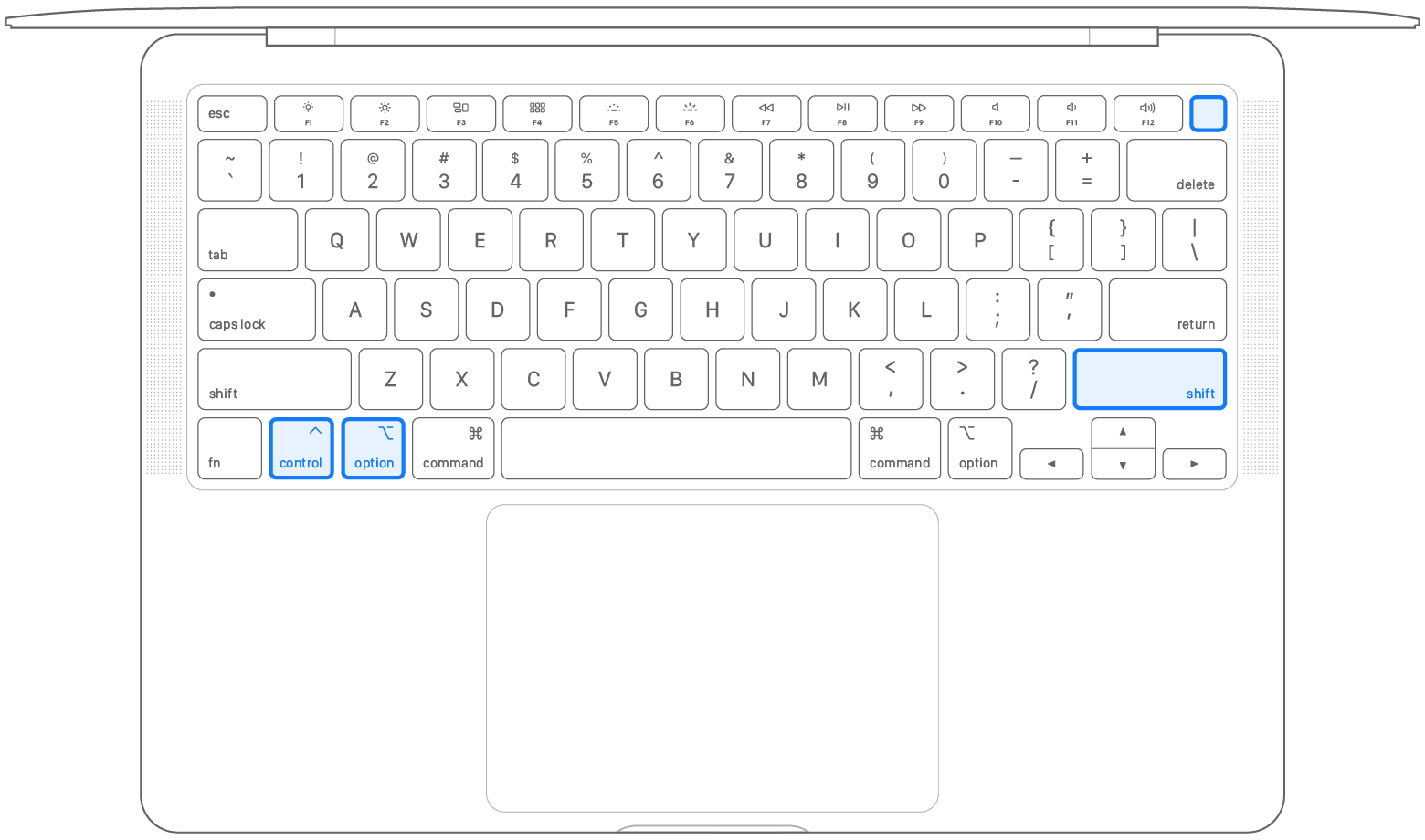
- Keep holding all four keys for another 7 seconds, then release them.
- Wait a few seconds, then press the power button to turn on your Mac.
Comments
0 comments
Please sign in to leave a comment.